Microsoft Power Apps: A Complete Overview for Beginners
1.Introduction
In today’s rapidly evolving digital landscape, organizations are seeking faster and more efficient ways to build business applications without relying heavily on traditional software development. Microsoft Power Apps addresses this challenge by providing a low-code development platform that enables users to create custom applications with minimal coding effort.
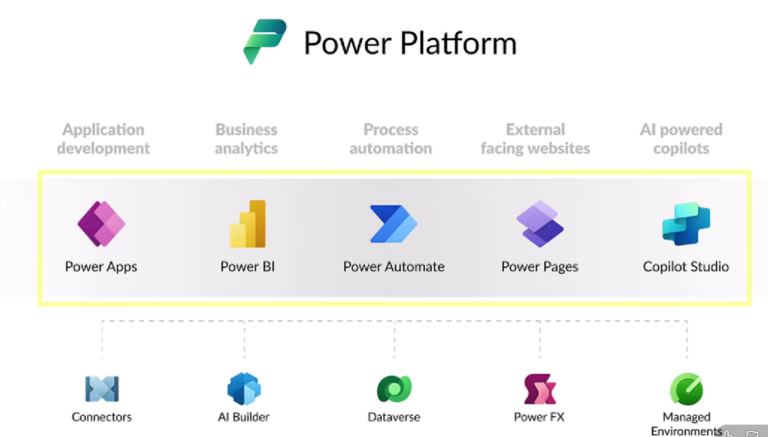
Whether it is automating business processes, managing data, or improving employee productivity, Power Apps empowers both developers and business users to build scalable solutions quickly. As part of the Microsoft Power Platform, it integrates seamlessly with services such as Power Automate, Power BI, Dataverse, and Microsoft 365, making it a powerful tool for modern digital transformation.
2.What is Microsoft Power Apps?
Power Apps is a low-code (minimal programming required) development environment that allows users to build custom applications tailored to business needs, even without IT expertise. It operates via a drag-and-drop interface for designing user interfaces (UI), similar to arranging elements visually, enabling professional-looking apps without traditional coding. Logic is implemented using simple formulas akin to Excel functions (e.g., SUM or IF), which connect data sources, automate processes, and generate outputs—making app functionality intuitive for familiar tool users.
This connects to the grocery example: Owners can create apps for inventory tracking, sales logging, and reports directly, bypassing Excel’s pitfalls while integrating business ideas seamlessly.
3.Why Use Microsoft Power Apps?
Organizations today require applications that can be developed quickly, modified easily, and deployed without extensive coding expertise. Microsoft Power Apps addresses these needs by providing a low-code development platform that enables users to create custom business applications through visual design tools and built-in components.
Power Apps reduces development time by allowing users to build applications using drag-and-drop controls, reusable templates, and Excel-like formulas instead of traditional programming languages. This enables business users and developers to collaborate effectively while accelerating digital transformation initiatives.
The platform also integrates seamlessly with Microsoft 365, SharePoint, Dataverse, SQL Server, and hundreds of other data sources through connectors, allowing organizations to centralize their business processes and improve operational efficiency.
By simplifying application development and automation, Power Apps empowers organizations to solve business challenges faster while reducing development costs and maintenance efforts.
4.Key Features of Microsoft Power Apps
Key Features Enabling Low-Code Development:
- Drag-and-drop for UI: Place buttons, forms, galleries without code.
- Excel-like formulas: Define behaviors like “If stock < 10, show alert” using expressions such as If(Stock < 10, Notify(“Low Stock”), Blank()).
- No server management: Cloud-hosted by Microsoft.
5.Canvas vs Model-driven apps
Model-Driven Apps: Structured Data-First Approach
Model-driven apps function like building a house from a predefined architectural plan, where the layout—including forms, views, and dashboards—is automatically generated from the underlying data structure. This ensures consistency and reliability because the app’s user interface (UI) and functionality derive directly from the data model, reducing errors from manual design.
Canvas Apps: Flexible UI-First Design
Canvas apps resemble a blank canvas where developers act as artists, crafting pixel-perfect user experiences from scratch. Every element—position, color, behavior—must be manually placed and configured, offering ultimate customization but requiring more upfront effort to build the entire structure, including data handling.
| Aspect | Model-Driven Apps | Canvas Apps |
|---|---|---|
| Starting Point | Data model in Dataverse; UI auto-generates from tables/relationships | Blank screen; UI built visually first |
| Primary Use Case | Enterprise apps with complex workflows (e.g., cross-department processes) | Lightweight, task-specific apps (e.g., mobile for field workers) |
| UI Control | Structured via prebuilt forms/views; limited flexibility for consistency | Full control (position/color/behavior) like custom web design |
| Data Sources | Exclusively Dataverse for centralized security/integrity | 1000+ sources (SQL Server, SharePoint, Excel, APIs) for broad connectivity |
| Responsiveness | Automatic across desktop/mobile; no manual tweaks needed | Manual design; flexible but labor-intensive |
| Development Speed | Faster with existing Dataverse model; auto-UI lets focus shift to logic | Slower; builds layout/logic/UI from scratch |
6.Data Sources in Power Apps
A Data Source is the external system your Power App connects to in order to read, write, update, or delete data.
A Data Source works with:
- Connectors → Used to connect to services
- Tables → Structured data
- Records → Single row of data
- Fields/Columns → Individual data points
How to Add a Data Source in Power Apps
- Open your app in Power Apps Studio
- Click Data (left panel)
- Click Add data
- Choose your connector
Select your file/list/database
7.Benefits of Microsoft Power Apps
Microsoft Power Apps provides numerous advantages for businesses and organizations seeking rapid application development.
1.Rapid Development
Applications can be created in days or weeks instead of months, significantly reducing project delivery time.
2.Low-Code Development
Users with little or no programming experience can build functional business applications using visual tools and simple formulas.
3.Seamless Microsoft Integration
Power Apps integrates naturally with Microsoft services such as SharePoint, Teams, Excel, Outlook, Power Automate, and Dataverse, creating a connected business ecosystem.
4.Cost-Effective Solution
Organizations can reduce the cost of traditional software development by enabling internal teams to build and maintain applications.
5.Cross-Platform Accessibility
Applications run on web browsers, tablets, and mobile devices, allowing users to access business data from anywhere.
6.Secure Data Management
Power Apps utilizes Microsoft’s enterprise-grade security and governance capabilities to protect organizational data.
7.AI-Powered Development
With Copilot and AI capabilities, users can generate applications, tables, and business logic using natural language, further accelerating development.
8.Conclusion
Microsoft Power Apps is a modern low-code application development platform that enables organizations to build custom business solutions quickly and efficiently. Its intuitive drag-and-drop interface, extensive connector ecosystem, cloud-based architecture, and AI-powered capabilities make it an ideal solution for businesses of all sizes.
Whether creating simple internal forms or enterprise-level business applications, Power Apps provides the flexibility, scalability, and integration required to support digital transformation while minimizing development complexity.
As organizations continue adopting low-code technologies, Microsoft Power Apps remains one of the leading platforms for accelerating innovation and improving business productivity.
8.Frequently Asked Questions (FAQs)
1. What is Microsoft Power Apps?
Microsoft Power Apps is a low-code development platform that enables users to create custom business applications with minimal programming knowledge using visual design tools and built-in components.
2. Do I need coding knowledge to use Power Apps?
No. Power Apps is designed for both technical and non-technical users. Most applications can be built using drag-and-drop controls and Excel-like formulas.
3. What data sources can Power Apps connect to?
Power Apps can connect to Microsoft Dataverse, SharePoint, SQL Server, Excel files, OneDrive, Microsoft 365 services, and hundreds of external systems through connectors.
4. What is the difference between Canvas Apps and Model-driven Apps?
Canvas Apps focus on designing a fully customized user interface, while Model-driven Apps automatically generate the interface based on the underlying data model and business structure.
5. Can Power Apps be used on mobile devices?
Yes. Power Apps supports web browsers, smartphones, and tablets, allowing users to access applications from multiple devices.
6. How does Power Apps integrate with Power Automate?
Power Apps can trigger Power Automate flows to automate tasks such as sending emails, creating documents, updating records, and integrating with external systems.
7. Is Power Apps suitable for enterprise applications?
Yes. Many organizations use Power Apps for enterprise solutions including HR management, inventory tracking, approval workflows, customer service, and business process automation.
8. What is Microsoft Dataverse?
Microsoft Dataverse is the secure cloud-based data platform used by Power Apps to store and manage business data in a structured and relational format.
